Spaced Repetition
What are we doing now?
You’re going to use this prep time to answer some questions and schedule in times to review your understanding. In your planner or calendar, schedule a short (10 minute) review of your answers:
💡Space at increasing intervals
- One week from today
- One month from today
- Three months from today
- Six months from today
- One year from today
Do this now. Then move forward to working through as many of these questions as you can. (You may not complete them all, and that is ok.)
Write down your answers first and then update them after looking at the sample answers, if it’s useful to do so. Use all available tools to help you answer, and remember:
the point is not to complete the exercises the point is for you to secure your own understanding
Examples of tools you might use
Install a UNIX based operating system
Learning Objectives
If you get stuck on any of the below or above instructions, please post in your class channel on Slack.
⚠️CYF does not support Windows!
We have found that we don’t reliably have volunteers at class who can debug Windows problems, and they frequently come up, stopping trainees from making progress.
We do not support Windows so as to not waste lots of trainee and volunteer time. We have made this decision even though Windows is a popular operating system and has features like WSL which help to get experience with Unix.
If you have a Mac or Linux machine already, you already have a UNIX based operating system. All CYF-supplied laptops run Mac OS or Linux. If you have your own machine and it runs Windows you will need to set up a Linux partition.
If you have still not done this you must do it now. If you need help doing this, post in Slack, or bring your laptop to a CYF co-working space to get support. It’s normal to need help with this process. The Ubuntu website has instructions which you can follow to dual-boot your system.
💡Tip
If you are enrolled as a trainee and you don’t have a suitable computer, Code Your Future can lend you a laptop which runs Mac or Linux. You can find information about borrowing laptops on our signposts site.
Install Node with nvm
Learning Objectives
If you get stuck on any of the below or above instructions, please post in your class channel on Slack.
💡tip
node -v in a terminal. The command should return a version number. If it does, you can skip the next steps.🐧 On Ubuntu
- Install nvm by running the following commands in your terminal:
curl -o- https://raw.githubusercontent.com/nvm-sh/nvm/v0.40.1/install.sh | bash- After the installation is complete, you’ll need to source the nvm script by running:
source ~/.bashrc- Install the latest LTS version of Node.js by running:
nvm install --lts- Check that you have successfully installed Node.js by running:
node -vYou should see a version number like v22.11.0.
- Check that you have successfully installed npm by running:
npm -vYou should see a version number like 10.9.0.
On Mac
- Install the the Xcode Command Line Developer Tools by running the following command in your terminal:
xcode-select --installThese may already be installed, in which case you will see “xcode-select: note: Command line tools are already installed.” and can continue to the next step.
- Create a (Non-Login Interactive) Shell Configuration File:
touch ~/.zshrc- Install nvm:
curl -o- https://raw.githubusercontent.com/nvm-sh/nvm/v0.40.1/install.sh | bash- After the installation is complete, you’ll need to source the nvm script by running:
source ~/.zshrc- Install the latest LTS version of Node.js by running:
nvm install --lts- Check that you have successfully installed Node.js by running:
node -vYou should see a version number like v22.11.0.
- Check that you have successfully installed npm by running:
npm -vYou should see a version number like 10.9.0.
💡Protip
Interacting with computers
Learning Objectives
Modern computers are complicated: it would be too difficult and time-consuming to list all the components that make up a modern computer. So to build our mental model, we will use this simple definition of a computer:
📖Definition
A computer is a device used to store and perform operations on data.
Using an interface
Learning Objectives
We want to use computers without understanding exactly how they are built. Every day we ask machines to do things, and usually we have no idea how these machines work. We could not use modern technology if we had to understand it completely before we could use it; it would take too long! Instead we use
Think about a cash machine (ATM). We go to a hole in the wall with a screen and a keypad. The screen and the keypad are the user interface. We press the buttons and ask the machine to do things - like giving our balance, or withdrawing some money from an account. We don’t need to understand how the information it tells us comes on the screen.
✍️Exercise
Define the user interface for these devices:
- a calculator
- a microwave
- a desktop lamp
- Alexa
- ChatGPT
Terminal interface
Learning Objectives
Programmers need interfaces to ask computers to do things. A computer terminal is an interface where programmers can issue commands to a computer. Because users enter text instructions and receive text output, we say that the terminal is a text-based interface. It is also often referred to as the command line.
Opening the Terminal
The Terminal Application
Every computer has a built-in application which we can use as a terminal. On Mac and Linux this app is conveniently called “Terminal”!
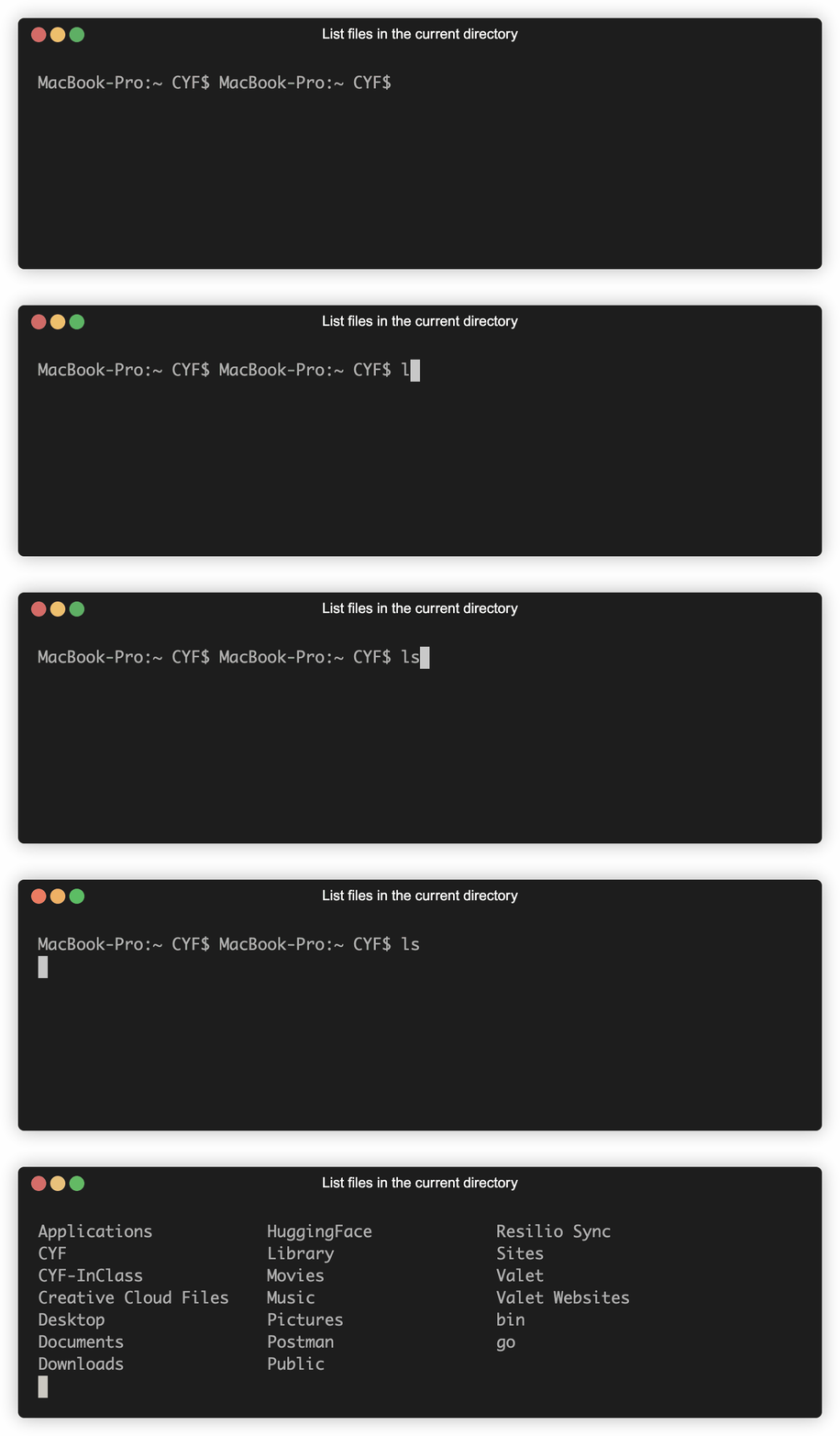
When you open the terminal you will see a blank screen with a cursor waiting for input. You can type instructions here and the computer will carry them out. Some instructions are quite simple, others can be quite complex. Anything you can do in an application like Explorer can be done here by typing a command, and you can often do it much quicker in the terminal! The example below shows a user listing the contents of a directory.
The Terminal in VSCode
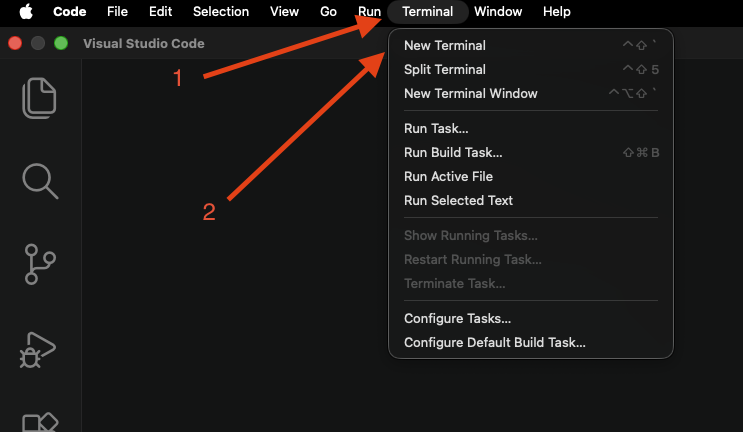
We can also open a terminal within VSCode, meaning we don’t need to switch between applications while we work. This is really useful when we need to refer back to the results of previous commands, such as logging output or test results. Anything we can do in the terminal app can be done within VSCode.
You can open a terminal in VSCode by clicking Terminal -> New Terminal.
Writing Commands
We can issue commands to the computer using the terminal. These commands are instructions that the computer knows how to interpret. As we go through the course we will introduce some commands which need particular tools to work, but for now we will focus on exploring our file system.
One of the most useful commands is pwd, for print working directory. This will tell you where you are in your file system, like pulling out a map with a big “you are here” sign on it.
The ls command means “list the files and directories in the current directory”.
To move from one directory to another we can use the cd (change directory) command. This is an example of a command which needs some extra information - we need to tell it where we want to go! For example, we would navigate to our Downloads folder using cd Downloads.
📝Casing
downloads and another called Downloads have totally different names! This is a really common cause of bugs, so if something doesn’t work the way you expect you should always check your spelling!We can make our own new directories using the mkdir command. When we use this command we need to provide a name for our new directory, eg. mkdir my_stuff.
We create new files using touch, and just like with directories we need to provide a name. An important part of creating a file is providing a file extension. This tells the computer what kind of file we have created, for example document.txt will be a text file and picture.png will be an image. You can create any kind of file using the terminal.
📝Naming
Coming up with names for things is one of the most challenging aspects of programming. In general a good name will make it obvious what a file contains without being too long, although there will be occasions where a file needs to have a specific name in order for something to work.
- ✅
shopping_list.txt - ❌
things_i_need_to_by_in_tesco_this_weekend_version_2.txt - ❌
stuff.txt
✍️Exercise - Terminal Practice
Visit Terminal Temple and try to complete the following tasks. Don’t worry if something goes wrong, you can reset by pasting resetterm --force into the interface and pressing enter.
- Move into the
Documentsfolder. - Create a new directory called
study-plans. - Move into your new directory.
- Create two new files:
week1.txtandweek2.txt. - Move back to the
Documentsdirectory - this will need some further research! - Delete
empty-file.txt. This will also need some research! - Check that the file was deleted by listing the contents of the directory.
Prep Directory
Learning Objectives
We will provide some code examples as you progress through the course but you will also write a lot of code yourself. You’re going to need somewhere in your system to store it all.
Create a working directory for the module
- Fork the coursework module (always linked in every backlog), clone it to your laptop and open it in VSCode.
- In your VSCode terminal, navigate to the root of your project directory.
- Create a new directory called
prepto store all the files you’ll be working on for this module.
As you work through the module, you’ll be creating files in this directory to code along with the prep content. You are expected to code along with the prep content.
You will need to do this at the start of every module. We suggest adding further sub-directories for each sprint but it’s up to you to organise your files in a way that suits you. For more complex problems you may need to create further sub-directories and write the code there. Try making notes as you go to document the process. Having your own notes will be very useful if you need to remind yourself how to do something in future!
Running scripts
Learning Objectives
It’s time to write our first lines of JavaScript!
There are some tools available which will enable us to write code and instantly see the results. These are called REPLs - Read, Evaluate, Print and Loop. These are great for quickly checking something but not very practical for production uses.
Usually our programs will have many instructions which we want to keep and re-run instead of typing them out each time. So we save our instructions in files. We can run these files from the terminal.
We use the node command to run a JavaScript file in the terminal. A JavaScript file ends with the .js file extension.
Let’s suppose we have a file hello_world.js. We run the command node hello_world.js. This terminal command is an instruction to execute the program written inside hello_world.js.
Printing to the terminal
Our first program will print the text “Hello World!” in the terminal. First we need to create a file to work in.
Open a terminal. You can either do this using your Terminal app or in VSCode, it doesn’t matter. Navigate to the prep directory you created in the last section and create a file called hello_world.js.
💡Tip: pwd
pwd command to print working directory if you lose track of where you are in your file system.cd Module-Onboarding/prep # Replace this with your file path if it's different
touch hello_world.jsOpen your new file in VSCode.
JavaScript prints values to the terminal using a function called console.log.
📖Definition: console.log
console usually means a text interface like a terminal. A log is a written record of something that happened.
So console.log will record something that happens in our program and print it to a text based interface.
console.log prints the result of expressions while our program is executing. Usually we will interact with our programs using some sort of graphical interface like a web browser so we won’t use this function often, but it is a very useful tool to help us solve problems in our code. It lets us check what values expressions evaluate to at specific moments of our program execution.
Let’s see how to use console.log . In your hello_world.js file write the name of the function console.log, a set of parentheses () and the message to be printed.
console.log("Hello World!");📝Note: Semicolons
Note that we have added a semicolon (;) at the end of the expression. Different programming languages handle semicolons in different ways: in some languages they are essential, in others including them will cause an error.
JavaScript code will run with or without a semicolon at the end of expressions but it’s good practice to include them. They help to keep your code organised and are helpful for anyone reviewing your code. Plus it’s good practice if you ever use a language like Java where they are required!
Now switch to the terminal and run the file using node:
node hello_world.js💡'Error: Cannot find module
pwd to check you are in the right directory. If not, navigate to teh correct place using cd and try again.We should see the string "Hello World!" logged out in the terminal. Congratulations, you have written your first JavaScript program!
✍️Exercise: Running JavaScript files
Let’s try again from the beginning
- In your terminal, create a new file called
facts.js. - Pick one of your fun facts from the Git sections in the first sprint
- Run the file using Node.
Classifying data
Learning Objectives
We can do a lot more than just print text with the JavaScript programming language. First we need to understand some of the rules we need to follow.
A programming language organises data with rules so we understand what we can and cannot do with it. Languages split data up into different categories called data types. A data type is a grouping of data with some particular properties. We will look first at numbers and strings.
Number data type
10 is an example of the number data type.
3.14 is also part of the number data type; both integers (whole numbers) and non-integers are types of number.
-15 is also part of the number data type. Positive and negative numbers, as well as 0, are all types of number.
String data type
A string is a sequence of characters demarcated by quotes.
"Code Your Future";Creating expressions
Think of the numbers 10 and 32. We could ask questions about these numbers, like: What is the sum of 10 and 32?
Another way to say this is what do 10 and 32 add up to? In English we can say this in many ways, but in JavaScript we can say this using numbers and an operator. Just like in mathematics, “the sum of 10 and 32” can be written as 10 + 32:
10 + 32;In JavaScript, + is an operator. An operator represents an operation, or act. It’s a symbol. In this example + represents the operation “calculate the sum of the numbers”. It symbolises addition.
The combination of symbols 10 + 32 is an expression. An expression is a value or any valid combination of values and symbols that results in a single value. We say that expressions evaluate to a single value. So we say that 10 + 32 evaluates to the value 42.
10 is also an expression. It evaluates to the value 10.
"Code Your Future" and "Code Your " + "Future" are also both expressions - both evaluate to the value "Code Your Future".
Saving expressions
Learning Objectives
In programming we often want to reuse our work. Consider the string: "Hello there"
Suppose we want to create different greetings for different people, like: "Hello there, Alicia" or "Hello there, Barney"
We can use a variable to store this string and reuse it. A variable is a label for a piece of data. We assign a piece of data to a label and then refer back to this label, in place of the data.
Declaring variables
We can create a variable in our program by writing a variable declaration. A declaration is an instruction that binds an identifier to a value, like this:
const greeting = "Hello there";Break down the different syntactic elements of this variable declaration:
constis a keyword used to indicate we’re creating a variable.greetingis the identifier - it can be used to refer to a variable after it has been declared.=is the assignment operator. It means assign to the labelgreetingthe value of the expression on the right hand side."Hello there"- this is the expression whose value we’re assigning to the labelgreeting.
✍️Exercise: Declare a variable
greeting.js. Open the file in VSCode and declare a variable called greeting like we did above.Accessing variables
Our data is stored in a variable, so how can we use it again later?
To access the data stored in a variable we just need to type the variable’s name. When our code is executed the appropriate value will be inserted and the expression will be evaluated. Try it now with your new variable:
console.log(greeting);"Hello there" has been printed to the terminal even though we didn’t explicitly write that in the code.
Using variables in expressions
Accessing variables can form part of complex expressions. Let’s add a second variable called name to our program. We’ll also add this variable to our console.log call so we print the greeting and the name together.
const greeting = "Hello there";
const name = "Alicia";
console.log(`${greeting}, ${name}`);
We just used backticks to create a template literal.
A template literal places ${expressions} inside strings;With template literals, we can insert expressions into strings to produce new strings. Any time we want to reference a variable inside a template literal we use a dollar sign $ and a set of curly braces {}. We can put any expression (e.g. a variable name) inside the curly braces. The value that expression evaluates to is then placed inside the string.
When an operation uses an expression, that expression is immediately evaluated, and how it was written is forgotten about. Each of these expressions evaluates to the same thing:
"Hello there, Alicia";
`Hello there, ${name}`;
`${greeting}, ${name}`;
greeting + ", " + name;
📖Definition: String literal
In the first example we don’t use a variable or a template to create a string. Instead we write a string "Hello there, Alicia".
A sequence of characters enclosed in quotation marks is called a string literal. "Hello there, Alicia" is a string literal.
Similarly, 10 is a number literal.
Reassigning a variable
Let’s say we want to greet people in a different way. That would mean changing the value of our greeting variable. This is a very common thing to do, in fact many of the programs you write will need you to do this.
We reassign a variable using the = operator:
const greeting = "Hello there";
greeting = "Good morning"
If we try to run our code now we’ll see an error (more on these at the end of this sprint). What went wrong?
The const keyword means that our variable is a constant - we can’t change its value! If we need to reassign a variable we need to use the let keyword when declaring the function instead.
let greeting = "Hello there";
greeting = "Good morning"
Now it works!
The first line of this block is the variable declaration, the second line is a statement. Note that we don’t need to use let again when reassigning the variable.
Comparing current and target output
Learning Objectives
Comparing values
We have learned how to store values in a program and how to access them again when we need them. At some point we will need to compare two values. Often our program will need to change its behaviour depending on that comparison.
For example, think about what happens when you switch on your laptop. Before you do anything else you are asked to enter a password. Whatever you type is compared against a value stored on the computer and if the two match you can carry on using your computer. If they are different you won’t be able to access files or use any programs.
We use comparison operators to compare two expressions. We use the equality operator == to check if two values are the same.
Boolean values
Some values are best represented as strings: any piece of text, a name, address, etc will most likely be stored using the string data type. The number data type can store numbers we use in calculations.
If we’re comparing two things, there are only two different states: true or false. This leads us to the boolean datatype, which only has true or false values. Whenever we compare two values with a comparison operator, we end up with a boolean value: true or false. It’s one or the other. It’s boolean.
// using the strict equality comparison expression

console.log(42 == 10 + 32);
// logs true

console.log(10 * 5 == 60);
// logs false
✍️Exercise - Comparing Values
Create a new file to work in and use console.log to print the values of these expressions. Try to predict the result before you run the code!
// 1
"hello" == "hello"

// 2
"CYF" == "cyf"

// 3
const homeTown = "Newcastle"
homeTown == "Liverpool"

// 4
42 == "42"
Strict Equality
Did anything surprise you about the outputs in that exercise? Number four probably looked strange - the two values have different types, so how can they be equal?
We were using loose equality in these examples. Loose equality compares the value of two terms but not their type. This might work in our code but it also makes our code vulnerable to bugs.
To avoid this we will use strict equality instead. This checks both value and type and will only evaluate as true if both are the same. The strict equality operator is ===.
✍️Exercise - Strictly Comparing Values
===. What do you see that is different in the outputs?Comparing Unequal Values
Often the condition we want to check isn’t about equality. It can be useful to know if a value is greater or less than another. There are four conditions we can check:
value1is greater thanvalue2:value1 > value2value1is greater than or equal tovalue2:value1 >= value2value1is less thanvalue2:value1 < value2value1is less than or equal tovalue2:value1 <= value2
These expressions all evaluate to true or false, just like the equality operators.
Negation
We can also explicitly check that two values are not equal to each other. This might sound strange but it is an important part of comparing values which we will use often throughout this course. The not operator is the symbol ! and it replaces the first = symbol in an equality operator. For example:
// check if two strings are equal
"hello world" === "Hello World!"
// false

// check if two strings are not equal
"hello world" !== "Hello World!"
// true
Making a choice
Learning Objectives
Let’s return to our password example from the previous section. Our code needs to be able to handle two possible scenarios:
- The user enters the correct password
- The user enters the wrong password
When we design our code we can interpret this as a question:
We need to consider both possibilities when writing our code.
- We should only load the desktop if the correct password is entered. This is called running code conditionally.
- We need to know what to do if the incorrect password is entered.
We don’t need to solve the whole problem at once. First let’s work out how to do something different if the password is correct. We can worry about what we need to do differently once we’ve solved this problem.
💡Tip
It’s easier to search for the solutions to smaller parts of problems than the whole problem.
Programming is all about breaking down problems into smaller pieces which we can solve.
Conditionally executing code
Learning Objectives
In programming we can use an if statement to execute some code when a given condition is true. In JavaScript, we can write an if statement as follows:
if (condition) {
  // code to execute if condition is true
}
The if statement consists of:
ifkeyword - this is the start of theifstatementcondition- condition is an expression that evaluates to true or false. The condition must be in parentheses:(){}- a code block: any code we want to execute if the condition is true goes inside these braces
We can represent this with a diagram too:
Writing an if statement
We’re going to write some code to implement our password checker example. We’ll use console.log to print messages for the user which will change depending on the password they enter. Let’s start by creating a file called passwordChecker.js to work in and initialising some variables.
const password = "secretword123";
const userInput = "secretword123";
We’ll assume for now that the user has entered the correct password and we’re storing that value in userInput. The password variable contains the value that we want to compare it to. Let’s add an if statement and compare the two variables as our condition.
const password = "secretword123";
const userInput = "secretword123";

if (userInput === password){
  // code will go here
}
Remember to use strict equality!
The next step is to define what should happen if the condition is met. A real password checker would start the process of loading a user’s profile, but in our example we’ll print a message confirming that the values match.
const password = "secretword123";
const userInput = "secretword123";

if (userInput === password){
  console.log("Correct password entered");
}
What happens if the condition is false?
Our code is great at letting the user know they entered the correct password, but they might make a mistake one time. Try changing the value of userInput and see what happens when it doesn’t match password.
That wasn’t very helpful, was it? We’ll look at how we handle things going wrong in more detail in the next few sections but for know we know we definitely don’t want things to fail without telling us anything. We need to tell our program what to do if the values don’t match.
To do this we will use the else keyword. When we add an else block to an if statement we’re saying “if the condition is false do this instead”.
const password = "secretword123";
const userInput = "thisiswrong";

if (userInput === password){
  console.log("Correct password entered");
} else {
  console.log("Incorrect password!");
}
Try running your code again - you should now see “Incorrect password!” printed in the terminal.
Try changing userInput again so it matches password and see what happens now. Note that you will never see both messages printed. If the condition is true then the block after it is executed and the program moves on.
More than two possibilities
We won’t always be dealing with yes/no questions. Sometimes we need to consider additional options. Let’s imagine we have a secret password administrators can use to access anyone’s account.
const password = "secretword123";
const userInput = "thisiswrong";
const adminPassword = "override";

if (userInput === password){
  console.log("Correct password entered");
} else {
  console.log("Incorrect password!");
}
Our code doesn’t specify what should happen if the user enters this admin password. We can change that by adding an else if block after the original condition but before the else block. This is structured the same way as the initial condition.
const password = "secretword123";
const userInput = "thisiswrong";
const adminPassword = "override";

if (userInput === password){
  console.log("Correct password entered");
} else if (userInput === adminPassword){
  console.log("Admin access granted");
} else {
  console.log("Incorrect password!");
}
We will still only ever see one block being executed, but now our program can handle more than two possibilities. The order of these conditions matters. If userInput === password the first block will be executed and the program will move on; we will only check userInput === adminPassword if that initial condition is false, and we will only execute the code following else if both conditions are false.
Errors
Learning Objectives
Recall that a programming language is a set of rules for writing computer instructions. What would happen if we break those rules?
Let’s take an example:
| |
On line 1, we have a variable declaration, but the string has a missing " We’re not obeying the syntactic rules for JavaScript: the rules for writing expressions, statements and other parts of the language.
When we execute the code above, we get this:
const firstName = "Francesco;
                  ^^^^^^^^^^^

Uncaught SyntaxError: Invalid or unexpected token
We get a SyntaxError message. This error message is telling us that we’ve broken one of the rules of the language. In this case the interpreter didn’t expect to see the semicolon - it needs us to add the missing " before the expression makes sense.
✍️Exercise: Predict and Explain
Each block of code in this activity is broken. Create a new file to test these expressions in, but before you run each block of code:
- Predict the error.
- Explain why the error happened.
const volunteer = "Shadi";
const volunteer = "Abdi";
const volunteer = "Shadi";
volunteer = "Hinde";console.log(Math.round(10.3);Interpreting errors
Learning Objectives
An error is thrown
Let’s revisit our password checker, but this time we’ll create a variable to hold our response and print it at the end:
| |
When we run the file with Node we get an error in the console:
% node passwordChecker.js

/Users/yourname/cyf/passwordChecker.js:11
  response = "Incorrect password!";
           ^

TypeError: Assignment to constant variable.
    at Object.<anonymous> (/Users/colinfarquhar/clients/cyf/content_testing/passwordChecker.js:11:12)
    at Module._compile (node:internal/modules/cjs/loader:1829:14)
    at Module._extensions..js (node:internal/modules/cjs/loader:1969:10)
    at Module.load (node:internal/modules/cjs/loader:1552:32)
    at Module._load (node:internal/modules/cjs/loader:1354:12)
    at wrapModuleLoad (node:internal/modules/cjs/loader:255:19)
    at Module.executeUserEntryPoint [as runMain] (node:internal/modules/run_main:154:5)
    at node:internal/main/run_main_module:33:47

Node.js v25.9.0
📖Definition: Throwing Errors
When an error is thrown the program stops. For errors like this one where there is a fundamental problem in the structure of the code this is unavoidable, but in some situations we can let the user know something went wrong without crashing the program. This is called catching an error and we will learn more in a later module.
When an error like this is thrown an error report is sent to the user. It will act like a map for us and lead us to where the error happened.
As programmers we will see a lot of errors. It’s useful for us to be able to read them.
Interpreting the output
Each line of output here tells us something useful.
The first line is:
/Users/yourname/cyf/passwordChecker.js:11
Your output was probably different. But it will have the same parts: some text, then a colon (:), then a number.
✍️Exercise: Locating the error
Work out what the parts of this line mean.
Why are they different in this example than on your computer?
How can we use both pieces of information?
Often, looking at one line of a file is enough to understand what’s wrong. The error message gives us the file name (passwordChecker.js) and the line number (11) so we can identify exactly where the problem is. It also shows us a copy of the line that caused the problem:
response = "Incorrect password!";
Then the output tells us the error message:
TypeError: Assignment to constant variable.
We may not know what this means yet, but it’s something we can learn about.
Each line starting with “at” is showing us a “Stack trace”. We’ll skip over this for now. In the future we’ll see how it can be useful to us.
Finally, we have this line:
Node.js v25.9.0
✍️Exercise: Identifying our tools
Interpreting this error
Learning Objectives
We saw this error - let’s try to understand it:
TypeError: Assignment to constant variable.Knowing what we changed
It can be useful to remember when our code last worked, and what we changed since then.
💡Tip: Commit history
Source control can help here.
If you commit your code every time you make something work, you can use git to easily see what changed since your last commit.
Everything worked until we made the refactor in the last section. The error appeared when we made the changes. The problem is that we made changes in a few places.
💡Tip: Check things often
Run your code very often.
If we changed one thing since our code last worked, we know what change is the problem. If we have written 100 lines of code since we last saw it work, we have 100 possible problems.
Interpreting the error message
The error message tries to tell us useful information:
TypeError: Assignment to constant variable.When we get an error, we should make sure we understand all of the words in the error message. If we don’t, we should look them up or ask someone.
✍️Exercise
For each word in this error message, write down what it means.
If you don’t know a word, look it up.
Make sure you understand each word. Make sure you could explain the word to someone without reading the answer to them.
Expand for example definitions - only expand this after you have written yours down. Compare your answers with these.
- TypeError - If we Google “JavaScript SyntaxError”, MDN tells us this is “an error when an operation could not be performed”. It goes on to say they can be thrown when “attempting to modify a value that cannot be changed”. We may be trying to modify something when we aren’t allowed to do so.
- Assignment - If we Google “JavaScript Identifier”, the first hit from MDN talks about “assigning a value to a variable or property”. That’s exactly what we’re trying to do on line 11.
- to is a standard English word with no special meaning.
- constant - If we Google “JavaScript constant”, MDN tells us that “the value of a constant can’t be changed through reassignment using the assignment operator”. It also references the
constkeyword which we use earlier in the program. - variable - We learnt about this already in this course - a variable is used to store a piece of data in a program.
Reading that back, we can rephrase this error message:
We tried to modify something which we weren’t allowed to modify. We tried to assign a new value to the response variable on line 11, but because it was declared using the const keyword its value can’t be changed.
💡Tip: Googling technical terms
Fixing the error
Learning Objectives
We saw this error:
TypeError: Assignment to constant variable.Now that we understand it, let’s fix it.
If a variable has been declared to be a constant we are not allowed to reassign it, but that’s what we’re attempting to do on line 11:
| |
✍️Exercise: Fix the error
Using what you have learned about variables already in this sprint, try to fix the error.
If you see a different error message you can apply the same techniques we used in the last section to understand it.
Backlog
Learning Objectives
In software development, we break down complex projects into smaller, manageable parts, which we work on for a week or two. These periods are called “sprints.”
A sprint backlog is like a to-do list. It lists what the team has decided to work on this sprint. It’s chosen from a larger list, usually called the “product backlog,” which holds the entire project to-do list.
In this course, the backlog is a set of work designed to build understanding beyond the concepts introduced in the course prep. For your course, we have prepared a backlog of mandatory work for each sprint. You will copy these tasks into your own backlog. You can also add any other tickets you want to work on to your backlog, and schedule all of the tasks according to your own goals and capacity. Use your planning board to do this.
You will find the backlog in the Backlog view on every sprint.
Copy the tickets you are working on to your own backlog. Organise your tickets on your board and move them to the right column as you work through them. Here’s a flowchart showing the stages a ticket goes through:
🕹️Backlog (30 minutes)
- Find the sprint backlog
- Copy your tickets to your own backlog
- Organise your tickets on your board